Connect your Framer CMS to Wrodium using a custom plugin for AI-powered content optimization.
Created date:
Dec 5, 2025
Updated date:
Dec 11, 2025
How Framer CMS Works
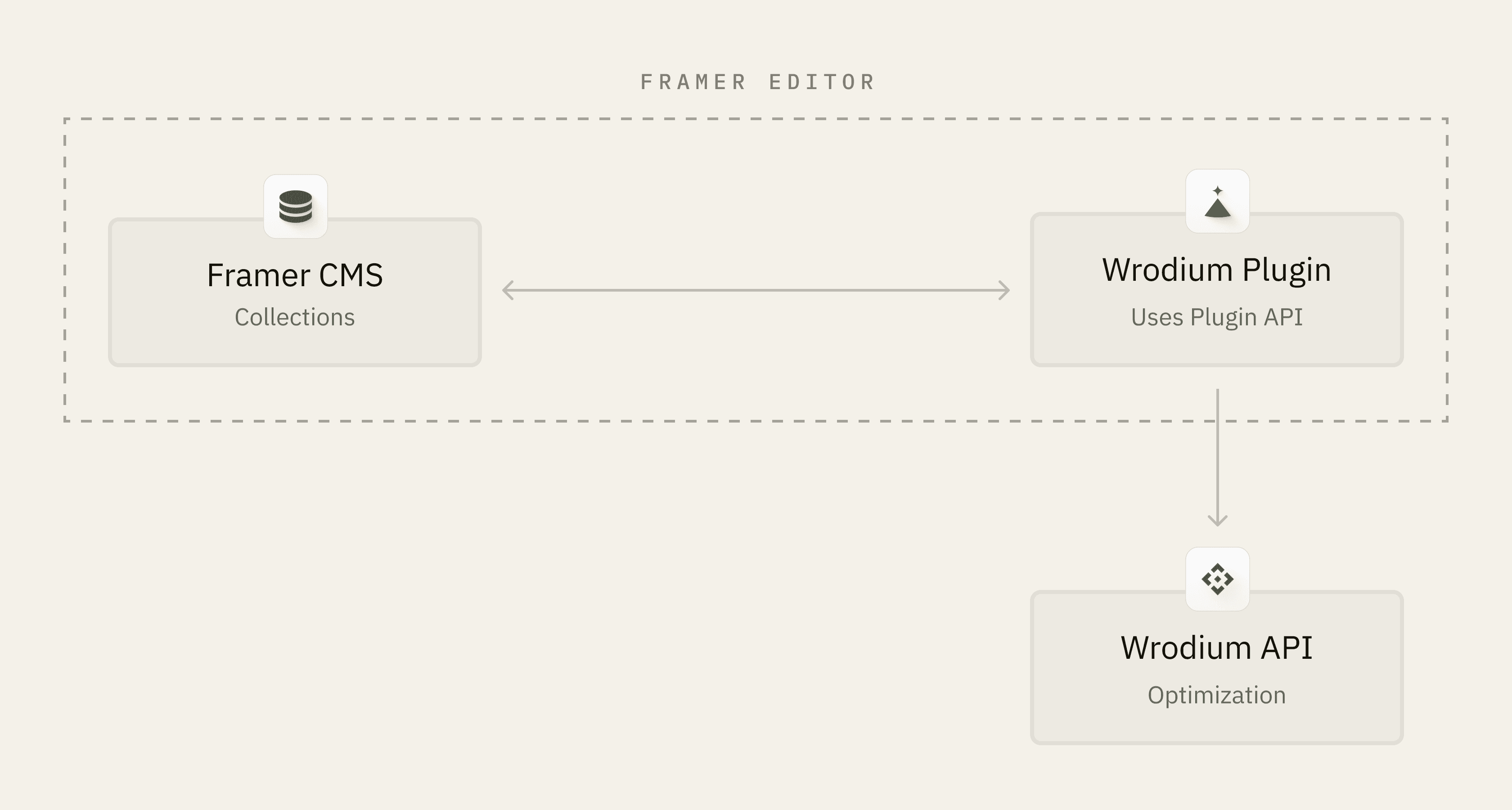
Unlike WordPress, Webflow, or Ghost, Framer CMS doesn't expose a public HTTP REST API. Instead, Framer content is managed through the Framer Plugin API, which runs inside the Framer editor.
This means Wrodium cannot directly pull or push content to Framer CMS. Instead, you'll install a Framer plugin that bridges Wrodium and your Framer CMS.
Architecture
Setup Steps
Step 1: Install the Wrodium Framer Plugin
Open your Framer project
Go to Plugins in the left sidebar
Search for "Wrodium" or import from URL
Click Install
Note: If the plugin isn't published yet, see "Building the Plugin" below.
Step 2: Configure the Plugin
Open the Wrodium plugin in Framer
Enter your Wrodium Brand URL (e.g.,
yourbrand.wrodium.com)Enter your Wrodium API Key (from Settings → API)
Select the CMS Collection to connect
Click Save Configuration
Step 3: Sync Content
With the plugin configured:
Click Pull from CMS to load articles into Wrodium
Articles appear in your Wrodium Maintenance tab
Optimize content using Wrodium's AI tools
Click Push to CMS in the plugin to sync optimized content back
Building the Wrodium Framer Plugin
If you need to build or customize the plugin:
Prerequisites
Node.js 18+
Framer Plugin CLI
Create the Plugin
Plugin Code
Create src/index.tsx:
Plugin UI
Create src/App.tsx for the configuration interface:
Build and Deploy
Wrodium Backend Endpoint
Wrodium provides a /framer/sync endpoint for plugin communication:
Workflow
Pull Content to Wrodium
In Framer, open the Wrodium plugin
Click Push to Wrodium
Plugin sends current CMS items to Wrodium
View items in Wrodium's Maintenance tab
Push Optimized Content to Framer
In Wrodium, optimize your articles
In Framer, click Sync on the CMS collection
Plugin pulls optimized content from Wrodium
Framer CMS updates with new content
Limitations
No real-time sync: Requires manual trigger in Framer
Plugin must be open: Sync only works when Framer editor is active
Field mapping: Field IDs must match between plugin and CMS
Alternative: Export/Import
If the plugin approach doesn't fit your workflow:
Export content from Framer CMS as JSON
Upload to Wrodium for optimization
Download optimized JSON from Wrodium
Import back into Framer CMS
Troubleshooting
Plugin Not Loading
Ensure plugin is installed in your Framer project
Check browser console for JavaScript errors
Sync Fails
Verify API key is correct
Check network connectivity to Wrodium API
Ensure brand URL matches your Wrodium account
Content Not Updating
Framer may cache CMS content
Republish your Framer site after sync
Check that field IDs match in plugin configuration